Setting Up Call Forwarding
PhoneShield team
The people who build and run PhoneShield
Written and kept current by the team behind PhoneShield, a sister company of Byte Federal, whose staff spent years meeting scam victims at cryptocurrency ATMs with the scammer still on the line.
In this article
Introduction
Call forwarding lets you keep your existing phone number with PhoneShield: callers dial the number they already know, and the call reaches the front desk first. This guide walks you through setting up forwarding based on your carrier and phone type, and how to test it.
Why Use Call Forwarding?
Call forwarding gives you the best of both worlds: keep the phone number everyone already knows, and put the PhoneShield front desk in front of it. The carrier codes for your account are also shown on Shield settings next to your PhoneShield number.
Types of Call Forwarding
Call forwarding comes in several types, each serving different needs:
Unconditional Forwarding
All calls to your number are forwarded to PhoneShield automatically. Your phone won't ring at all.
Busy Forwarding
Calls are forwarded only when your line is busy or you're already on a call.
No Answer Forwarding
Calls are forwarded when you don't answer within a certain number of rings (typically 4-6 rings).
Unreachable Forwarding
Calls are forwarded when your phone is turned off or out of coverage area.
Which Type to Use?
For the full PhoneShield experience, set up Unconditional Forwarding so every call meets the front desk. No Answer Forwarding is the compromise if you want your phone to ring first for everyone.
Setting Up on iPhone
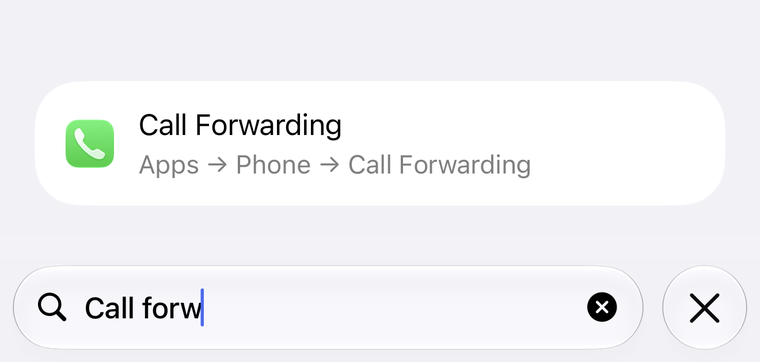
iPhone users have two main methods to set up call forwarding. The quickest way to find the switch: open Settings and type “call forwarding” into the search field at the top.
Method 1: Using Phone Settings
- Open the Settings app
- Scroll down and tap Phone
- Tap Call Forwarding
- Toggle Call Forwarding on
- Enter your PhoneShield number
- Tap Back to save
Note: This method only allows for unconditional forwarding. For other types of forwarding, use Method 2.
Method 2: Using Carrier Codes
If Method 1 doesn’t work, you can try dialing special codes:
- Unconditional forwarding: Dial
*21*PhoneShieldNumber#then press call - Busy forwarding: Dial
*67*PhoneShieldNumber#then press call - No answer forwarding: Dial
*61*PhoneShieldNumber#then press call - Unreachable forwarding: Dial
*62*PhoneShieldNumber#then press call
To cancel forwarding, dial *#21# for unconditional, *#67# for busy,*#61# for no answer, or *#62# for unreachable.
Setting Up on Android
Android users also have two methods for setting up call forwarding:
Method 1: Using Phone App
- Open the Phone app
- Tap the three dots or Menu icon
- Select Settings or Call settings
- Tap Call forwarding or Additional settings then Call forwarding
- Select the type of forwarding you want to set up
- Enter your PhoneShield number
- Tap Enable, Turn on, or OK
Note: The exact steps may vary depending on your Android version and manufacturer.
Method 2: Using Carrier Codes
Same as iPhone, you can use the dialing codes:
- Unconditional forwarding: Dial
*21*PhoneShieldNumber#then press call - Busy forwarding: Dial
*67*PhoneShieldNumber#then press call - No answer forwarding: Dial
*61*PhoneShieldNumber#then press call - Unreachable forwarding: Dial
*62*PhoneShieldNumber#then press call
Manufacturer Differences
Samsung, Google, OnePlus, and other Android manufacturers may have slightly different menu structures. If you can’t find the call forwarding options, search for “call forwarding” in your phone’s settings search.
Carrier-Specific Instructions
Different carriers have specific methods for setting up call forwarding:
AT&T
You can set up call forwarding through your AT&T account:
- Log in to your AT&T account
- Navigate to Wireless > Manage Features
- Find Call Forwarding and select Manage
- Enter your PhoneShield number and save changes
Alternatively, dial *72 followed by your PhoneShield number to enable, or *73 to disable.
Verizon
Set up call forwarding with Verizon:
- Log in to your Verizon account
- Navigate to Services > Call Forwarding
- Enter your PhoneShield number and save
Alternatively, from your Verizon phone, dial *72 followed by your PhoneShield number to enable, or *73 to disable.
T-Mobile
To set up call forwarding with T-Mobile:
- Log in to your T-Mobile account
- Navigate to Phone > Manage services
- Find Call Forwarding and select your options
- Enter your PhoneShield number and save
Alternatively, dial *21* followed by your PhoneShield number and # to enable, or ##21# to disable.
Need Help?
If you’re having trouble setting up call forwarding, contact your mobile carrier’s customer service. They can help you set it up correctly for your specific plan and device.
Forwarding Strategies
Here are some strategies for using conditional forwarding with PhoneShield:
Work Hours Only
Enable unconditional forwarding during work hours, and disable it after hours to screen your calls only when you're working.
Meetings/Do Not Disturb
Enable forwarding when you're in meetings or set your phone to Do Not Disturb mode, so PhoneShield handles calls when you can't be interrupted.
Sleep Hours
Set up forwarding during your sleep hours so your AI can handle late-night calls without disturbing you.
Favorites
Forward everything and let PhoneShield sort it: callers on your Favorites list ring you straight through with a whisper naming them, everyone else meets the front desk.
Advanced: Automation Apps
For even more control, consider using automation apps to manage your call forwarding:
- IFTTT - Create applets that enable/disable call forwarding based on your location, time, or other triggers
- Tasker (Android) - Create complex automation rules for call forwarding based on multiple conditions
- Shortcuts (iOS) - Create shortcuts to quickly enable/disable forwarding with a single tap
Testing Your Setup
After setting up call forwarding, check that it works. Start with the built-in test; it takes ten seconds and needs no second phone:
- Run the loop-back test on Shield settings
Under the phone that forwards, click “Test that forwarding is on”. PhoneShield calls your number; if forwarding is on, the call loops straight back to the front desk and the page confirms it. If your phone rings instead, forwarding is not active yet.
- Then call your regular number from another phone
Use a phone that is not on your Favorites list, so you hear what a stranger hears.
- Check that the front desk answers
You should hear the greeting you wrote and be asked who you are and why you are calling.
- Check that you receive the notification
Leave a message and confirm it arrives through your chosen channels and in the Messages feed.
- Test disabling the forwarding
Turn off forwarding with your carrier’s cancel code and verify that calls now ring directly to your phone.
Success!
When properly set up, every call to your existing number reaches the front desk first, favorites ring you straight through, and only the calls that pass ring your phone.
Related Articles
Ready to try PhoneShield?
Start screening your calls today and take back control of your phone.